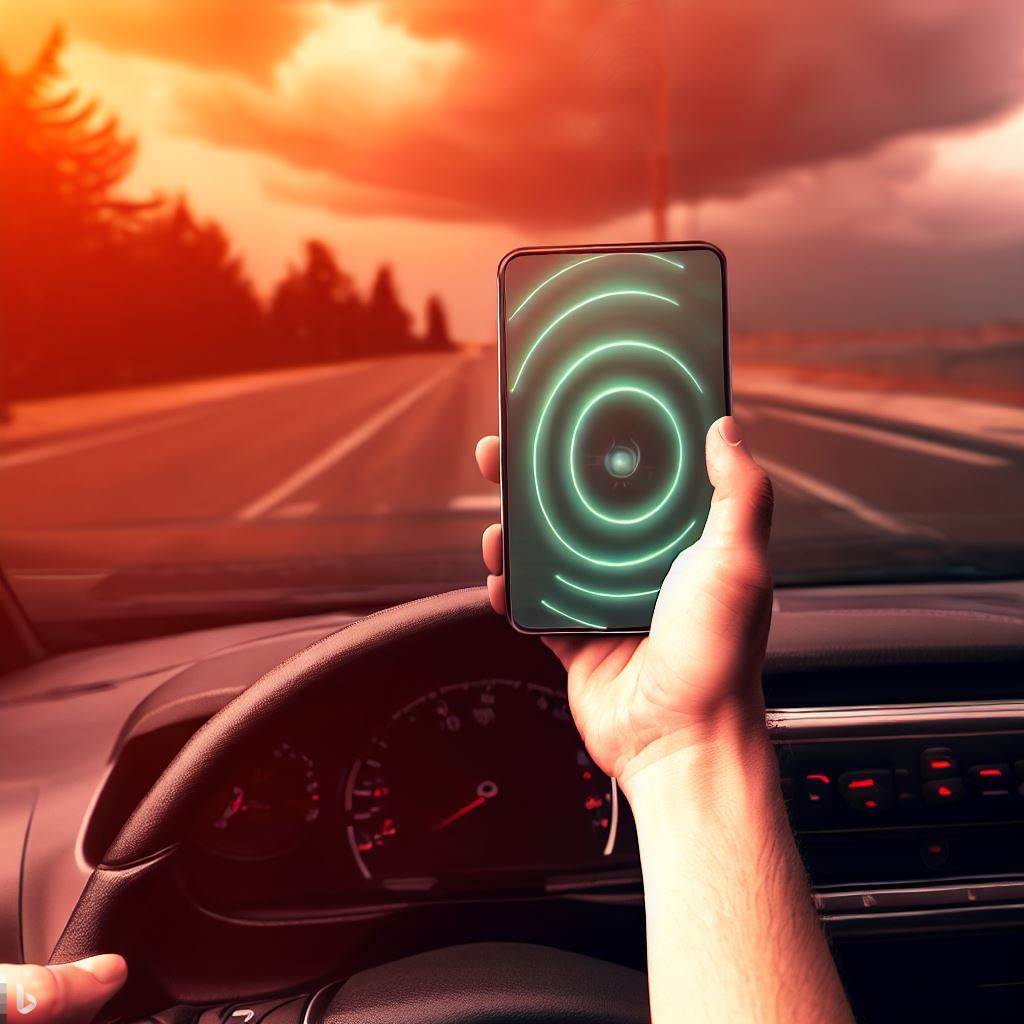
In today's world, technology is an indispensable tool for navigating our daily lives. Thanks to technological advancements, drivers can now rely on free apps that warn them about the proximity of speed cameras, helping them keep their cars within the speed limit and drive more safely.
These apps provide real-time alerts for speed cameras, giving you time to check your speedometer and reduce your speed to the legal limit before passing the device. So, let's explore the best free speed camera detection apps currently available.
The best radar detector apps
Next, we will present a selection of the five best free radar detection apps that stand out in the current market.
Radarbot
Another excellent app is Radarbot, which is specifically dedicated to detecting speed cameras. It provides alerts for fixed and mobile speed cameras, as well as information about speed limits. Combined with the phone's GPS, Radarbot helps you realize when you are exceeding the speed limit and correct your speed in time.
Waze
Waze is a real-time navigation and traffic application that integrates radar alert functionality. This app provides warnings based on speed camera locations reported by other users in the Waze community. Therefore, Waze is more than a radar detector, it is a social network of drivers who share information to improve everyone's driving experience.
CamSam
CamSam is an efficient radar detector that provides real-time alerts for speed cameras in over 30 countries. In addition, CamSam maintains a community-fed database of radar locations—which, like any collaborative database, may be incomplete or outdated, especially in the case of mobile speed cameras.
Speed Camera Radar
Speed Camera Radar is an application that maps speed cameras and speed cameras around the world. This app is highly customizable, allowing you to specify the type of radar you want to receive alerts for. From traffic cameras to red light cameras, Speed Camera Radar has it all.
TomTom AmiGO
Last, but certainly not least, we have the TomTom AmiGO. This free navigation app offers speed camera alerts, as well as traffic congestion and accident alerts. It's an excellent choice for those who want a safe and smooth driving experience.
Conclusion
Free radar detection apps can be useful tools to keep you aware of the speed limit on each road and more conscious while driving.
The apps mentioned above – Waze, Radarbot, CamSam, Speed Camera Radar, and TomTom AmiGO – are all excellent choices that offer robust and reliable radar detection functionality.
It's important to remember that no app replaces paying attention to the speedometer and road signs: alerts depend on collaborative databases, which may be incomplete or outdated. The key is to find the app that best suits your driving needs and always drive within the speed limit.
What to look for before installing
- Size and memory usage. Utility applications should be lightweight. Those that exceed a few hundred megabytes often contain advertisements and trackers.
- It works offline. Many of these utilities don't require internet access. If an app requires a connection for a local task, you should be suspicious.
- Update frequency. An app that hasn't been updated in over a year is likely to break with the next system version.
- Billing model. Check if it's free with ads, a one-time payment, or a subscription. Subscriptions for simple tasks rarely make sense.
What these apps don't do
Before installing, it's worth managing your expectations: there are things that no app in this category delivers.
- No app actually increases battery capacity — what you can do is reduce consumption by turning off features.
- Features that rely on missing hardware won't work via software. Without the sensor, no application can solve the problem.
- Apps that promise impossible functions are often advertising platforms, and some request permissions they shouldn't.
- They are not a substitute for professional equipment. Cell phone sensors are for estimation, not for technically precise measurements.
Common questions
How do I know if an app is trustworthy?
Look at the developer, number of reviews, date of last update, and permissions requested. Those four together say a lot.
Does it work without internet?
Those that process locally, yes. Those that rely on a server require a connection and send their data externally.
Doesn't the cell phone already do that automatically?
It often does. Flashlight, recorder, document scanning, ruler, and QR code reader are native features in recent versions.
Do I have to pay to use it?
In most utilities, no. The free version with ads works fine, and the paid version is for removing ads.
Does it consume a lot of battery?
It depends on what's running in the background. Check the usage per app in the settings and restrict anything that's excessive.
Step-by-step to get started
- Check if it works offline. If the task is local but still requires a connection, your data is being sent to a server.
- Review your consumption after one week. In the settings, view battery and data usage by app and restrict any that are high.
- Check what the app asks for during installation. Compare the permissions with what it actually does. It's the quickest test of trustworthiness.
- Try the free version before you pay. Check if the feature you want is outside the free plan—it usually is.
Traps that catch almost everyone
- Choosing based on average rating without reading recent negative reviews.
- Installing multiple applications that do the same thing, all running in the background.
- Ignore the fact that the free version limits exports or applies a watermark.
- Believing in a feature that the device's hardware does not support.
What the cell phone itself already does.
It's worth opening the search in your phone's settings before installing: Android and iPhone already have several built-in functions, and the native app usually consumes less battery and doesn't ask for any permissions beyond what's necessary.
Warning is legal, blocking is a very serious offense.
There's been confusion for years between two completely different devices, and it matters because one costs you points on your license.
O alert due to position That's what navigation apps do: they store the coordinates of known speed cameras and warn you when you're approaching. They don't interfere with the enforcement equipment in any way. There's no legal prohibition against this function, and the government itself discloses the location of fixed speed cameras precisely because the stated purpose of enforcement is to reduce speed, not to collect fines.
Already signal detector or blocker It is another product: an electronic device that captures or disrupts radar emissions. The Brazilian Traffic Code, in article 237, treats driving a vehicle equipped with a device capable of interfering with the operation of speed control equipment as a very serious offense, punishable by a fine, seven points on the license, and seizure of the device. Furthermore, equipment that emits signals without homologation violates telecommunications regulations.
Practical summary: a navigation app that warns of "speed camera 300 meters ahead" is permitted. A device purchased from a foreign website that promises to "blind the speed camera" is an infraction and will be confiscated.
The types of radar and why only some appear in the app.
Not all enforcement equipment is the same, and the app can predict some but not others:
- Fixed. Installed on a gantry or pole, always in the same spot, with mandatory prior signage. It's the only one the app accurately pinpoints because the coordinates don't change.
- Static. Mounted on a tripod at the side of the road, operated by an officer. Changes location. Only appears on the app when someone has just reported it.
- Mobile. Installed inside a vehicle, measuring while in motion. Virtually impossible to map.
- Electronic speed bump. Fixed speed, with display showing the speed. Well mapped.
- Radar by section. Two reading points calculate the average speed between them. Braking in front of the first one doesn't help: the calculation is for the entire distance traveled.
- Electronic enforcement of traffic light violations and exclusive lane markings. It doesn't measure speed, but it's usually in the same database.
That's why those who rely entirely on the app end up getting fined. It covers fixed speed cameras well, but poorly at everything else.
Where does the data come from — and why is it sometimes wrong?
Radar base stations have three origins, usually combined:
- Official data. State and municipal traffic authorities, as well as highway patrols, publish lists of fixed speed cameras. This is the most reliable information, but it is updated in long cycles.
- User collaboration. Drivers report what they see. It covers both static radar and roadblocks on the same day, at the cost of errors: someone reports from the wrong lane, forgets to close the report, or the equipment is removed and the record remains.
- Fleet mapping. Companies are surveying roads and recording equipment, also taking advantage of the collective braking patterns of users.
This explains the typical glitches. The alert that goes off on the road below when you're on the overpass is an altitude error: cell phone GPS has reasonable horizontal accuracy, but altitude is the least accurate axis. The radar that "no longer exists" is an outdated record. The alert that arrives too late is a positioning delay — the receiver updates its position every second, and at 100 km/h, every second is 28 meters.
When the alert is consistently wrong on the same point, it's worth reporting it within the app itself. That's how the system corrects itself.
The margin of tolerance and what it really means.
Many people drive believing in a greater tolerance than actually exists. The metrology rules applied to speed measuring devices stipulate a maximum permissible error, and it is this error that generates the difference between the measured speed and the actual speed.
- On roads with a speed limit of up to 100 km/h, the discount is 7 km/h.
- Above 100 km/h, the discount is 7% on the measured speed.
In other words: on a 60 km/h road, the fine starts at a measured speed of 68 km/h. On a 120 km/h road, it starts at approximately 129 km/h. This margin is not a bonus for the permitted speed—it's a correction for an equipment error. The legal limit remains that indicated on the sign, and an accident exceeding it has consequences independent of a fine.
It's worth remembering that car speedometers can also be inaccurate, and normally they should never indicate less than the actual speed. In practice, almost every speedometer shows a few kilometers per hour higher than the actual speed. The speed shown by a cell phone's GPS is usually closer to the actual speed because it's calculated based on displacement.
Configure the alert so that it is truly useful.
An installed but poorly configured app becomes noise, and noise is best ignored. Here are some adjustments that can change the experience:
- Activate the speeding alert., It's not just the radar. It warns you whenever you exceed the speed limit, not just when there's enforcement. It's the only adjustment that changes driving behavior.
- Reduce secondary audible alerts. Pothole, animal, object on the road, everything happening at once makes the driver stop paying attention to everything.
- Keep your voice at a volume audible through the car's sound system. Several apps allow you to pause the music during the alert.
- Use support and configure before leaving. Using a cell phone while driving is a very serious offense in Brazil, punishable by a fine and seven points on your license—even when stopped at a traffic light.
- Download the offline map of the region. Before a long trip. In areas without data coverage, the GPS continues to work (it doesn't depend on the mobile network), but the map and radar database only appear if they are saved on the device.
- Check the battery consumption. Navigation with the screen on is one of the biggest energy consumers there is. Having a charger in the car is no longer a luxury when traveling.
And a reminder that no app gives: radar is a symptom, not the cause. Stretches with heavy speed enforcement are usually stretches with a history of accidents—schools, dangerous curves, pedestrian crossings. Slowing down there is usually a good idea even when the equipment is turned off.