Let's start with the point that resolves the doubt: No ordinary smartphone projects an image onto a wall.. Projecting requires a strong light source and a lens system—hardware that a cell phone doesn't have. Therefore, no single app can transform a phone into a projector. If you find an app promising this, it will only display a bright screen with a filter on top, simulating the effect.
The good news is that the intention behind the search does have a solution — and several. You can project your phone screen onto a TV, a monitor, a real projector, or even a laptop, wired or wirelessly, often without spending anything. In this guide, you'll see all the methods that work in practice, the official apps for each, what to buy when there's no smart TV nearby, and how to solve the most common image freezing and lag problems.
Why doesn't the cell phone project onto every surface?
A projector needs three components: a high-power lamp or LED, a panel that forms the image, and an optical system that magnifies and focuses that image from a distance. All of this takes up space and consumes a lot of energy—much more than a cell phone battery would last for a few minutes.
There have been attempts to embed micro-projectors in phones, such as the Samsung Galaxy Beam, launched at the beginning of the last decade. These were large devices with low brightness and short battery life, and the idea was abandoned by the industry. Current cell phones have nothing similar: the only outward-facing light source is the camera flash, which illuminates but does not form an image.
The camera doesn't help in this regard either — it capture It doesn't emit light, but rather light. Therefore, when an app says it uses "the device's camera and projection technology," it's describing something that doesn't exist.
What really works: mirroring and streaming.
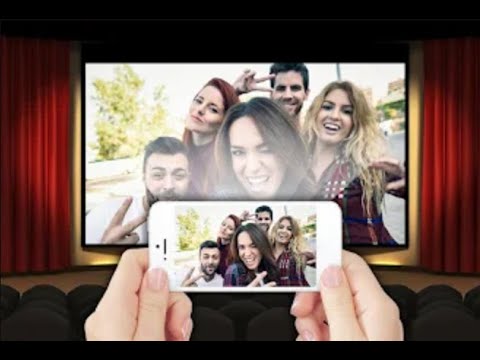
In practice, what happens is that the image is sent from the cell phone to a device that already knows how to display it on a large screen. There are two ways to do this, and understanding the difference avoids a lot of frustration:
- Mirroring: The TV displays exactly what's on the phone, including notifications and the home screen. The phone needs to be on and transmitting, which consumes battery power.
- Transmission (casting): The phone acts as a remote control; the TV itself downloads the video. It's more stable, uses less battery, and allows you to use your phone for other things while the video plays. It's the same mode as the "cast" button in YouTube and other video apps.
Whenever streaming is possible, prefer streaming. Mirroring is the alternative for things that don't have native support, such as presentations, gallery photos, and games.
Official apps and resources for displaying your phone screen on a big screen.
Below are solutions that actually work, each with the scenario in which it is the best choice. All are available in official app stores or come pre-installed on the system.
1. Google Home (Chromecast and TVs with Google TV)
This app configures Chromecast devices and TVs with Google TV built-in, and also allows you to mirror your entire Android screen using the "Cast screen" option. Once configured, most video apps will display the cast icon directly, without needing to open Google Home. Available on... Google Play.
It's the cheapest and most stable option for those with a regular TV: a Chromecast connected to the HDMI port does the trick, and the phone only needs to be on the same Wi-Fi network.
2. Google TV
On TVs and devices with Google TV, this is the app that organizes content and even turns your phone into a remote control — useful when the remote gets lost on the couch. It complements the streaming, making it easier to type passwords and search on your phone screen. Available on Google Play.
3. Smart View, Screen Mirroring and similar features (already on your mobile phone)
Many manufacturers include built-in mirroring, eliminating the need for any installation. On Samsung devices, the feature is called Smart View It's located in the shortcuts panel, next to Wi-Fi. On other Android models, it appears as... Transmit, Screen mirroring, Multi-screen or Cast, It depends on the brand. On iPhones and iPads, it's the... Screen Mirroring in Control Center, which works with Apple TV and TVs compatible with AirPlay 2.
It's always worth checking this option before installing any app: if your TV is compatible, the native feature is usually the fastest and most stable.
4. AirScreen
This app is installed on TV Or on an Android TV device, not on a mobile phone. It makes the television understand the AirPlay, Google Cast, and Miracast protocols, allowing mirroring of iPhones and Android devices on devices that didn't have this support built-in. It's the solution for those who have an old TV Box and want to make use of it. Available on Google Play.
5. Let'sView
A free alternative for mirroring your phone on your computer — useful for online classes, recording tutorials, and meetings where you need to show something that's on your phone. It works over your local Wi-Fi network, with one app on your phone and another on your PC. Available on [platform name - implied]. Google Play.
6. Epson iProjection
If the projector in the meeting room or school is from a brand that supports network connectivity, there's almost always an official manufacturer app that sends documents, photos, and your phone's screen directly to the projector via Wi-Fi. Epson's app is one of the most widespread and covers a large portion of corporate projectors. Available at [website/platform name]. Google Play.
When it comes to hardware: what to buy
Software solves half the problem. To truly have a large image on a wall, at some point you'll need a device. These are the options, from the cheapest to the most complete.
Cable — the most reliable solution
Nothing is as stable as a cable. On Android phones with USB-C video output, a USB-C to HDMI adapter connects the phone directly to the TV or projector, without lag and without relying on Wi-Fi. The same applies to iPhones with USB-C; for models with Lightning, Apple's Digital AV Adapter is required.
One important detail: not all Android phones send video via USB-C. This feature depends on support for DisplayPort Alt Mode, common in mid-range and high-end devices, but absent in many entry-level models. It's worth checking the technical specifications before buying the adapter.
Chromecast or HDMI dongle
It transforms any TV with an HDMI input into a smart TV, and is the cheapest way to enable streaming and mirroring. All you need is USB power and the same Wi-Fi network as your mobile phone.
Mini projector
This is the closest thing to the idea of "projecting onto any surface." Portable models with an HDMI input accept a cable from a cell phone, and many already come with Android built-in for wireless transmission. When choosing, look at three numbers: lumens (below 200 only works in total darkness), native resolution — and not the "supported resolution" of the advertisement — and if there is autofocus and distortion correction, which saves a lot of work during installation.
A light-colored, smooth wall gives a reasonable result, but a cheap projection screen greatly improves the contrast. And, contrary to what advertisements suggest, daytime projection in a bright room requires much more powerful and expensive equipment.
Step-by-step: mirroring Android on a TV
- Connect your TV (or Chromecast) and your phone to the... same Wi-Fi network. Separate 2.4 GHz and 5 GHz networks are often the reason why the device "doesn't show up".
- Open the phone's shortcuts panel and tap on Transmit, Smart View or equivalent.
- Choose the TV channel name from the list.
- Authorize the connection on the TV screen, if prompted.
- Rotate your phone horizontally to fill the screen in videos and presentations.
On iPhone
- Open Control Center by swiping up from the upper right corner.
- Tap on Screen Mirroring.
- Select your Apple TV or AirPlay 2 compatible TV.
- Enter the code displayed on the television when prompted.
Common problems and how to solve them.
- TV is not listed. Check that both devices are on the same Wi-Fi band and that the TV is not connected via Ethernet cable while the mobile phone is connected to the Wi-Fi of another router.
- The image freezes or pixelates: Move closer to the router, choose a 5 GHz network, and close any ongoing downloads. If the problem persists, switch from mirroring to streaming within the video app.
- There is a delay between audio and video: Wireless mirroring works normally. For gaming and video conferencing, use a cable.
- The screen will have black borders: The aspect ratio of a cell phone is different from that of a TV. Full-screen videos and landscape mode minimize the effect.
- The streaming app displays a black screen. Content protection. Use the cast button within the app itself, instead of mirroring the entire screen.
- The battery runs out quickly: Mirroring consumes a lot of power. Leave the charger plugged in during long sessions.
Common questions
Is there an app that projects your phone screen onto a wall without any equipment? No. Projecting requires a lens and a light source, which a cell phone doesn't have. Any app that promises this is simulating the effect.
Do I need internet to mirror the video? For local mirroring, both devices simply need to be on the same Wi-Fi network—an internet connection isn't even necessary. However, streaming video from online services requires an internet connection on the TV.
Is it possible to mirror the screen on an older TV without Wi-Fi? Yes, in two ways: with a Chromecast or dongle plugged into the HDMI input, or with a cable from your phone directly into the TV's HDMI port.
Does it work with iPhones and non-Apple TVs? Yes, if the TV has AirPlay 2 — common in recent models from various brands. Otherwise, install AirScreen on an Android TV device connected to the television.
Is it worth buying a cheap mini projector? Suitable for nighttime use in dark environments, with realistic brightness expectations. For bright rooms or professional settings, it's better to invest in a device with more lumens.
Can I use my phone as a controller while the video is playing? Yes, when you use streaming instead of mirroring. The TV automatically retrieves the video, freeing up your phone.
Conclusion
The idea of turning a cell phone into a pocket projector is appealing, but it runs into a simple physical limitation: a lack of hardware. What does exist—and works very well—is the set of mirroring and transmission features, which brings the phone's screen to the TV, monitor, or projector with just a few taps.
In practice, the roadmap is this: start by testing your phone's native feature, because it probably already solves the problem; if the TV isn't compatible, a cheap Chromecast will do the trick; if stability is essential, use a cable; and if the goal is a large image on the wall, a mini-projector with HDMI is the only real way. This way you achieve the same result that those miracle apps promise—only for real.