First of all, I need to be direct with you: No app can turn your phone into a real projector.. Projecting an image onto a wall requires a lens and a powerful light source, physical components that a smartphone simply doesn't have. Apps that promise or actually do this... screen mirroring (They send the image from the cell phone to a TV or projector that already exists) or they are just simulators, made for fun and funny videos.
The good news is that the useful part of this story works very well — and it's free. With the right app, you can play your video, photo, or presentation from your phone onto a big screen in seconds, wirelessly and without spending anything beyond what you already have at home. In this guide, you will understand... what can actually be done, What are the five best apps for this, how to set them up step by step, and what to do when the transmission freezes?.
What the app actually does (and what's impossible)
It's important to distinguish between the two things that are often sold under the same name. The first is... screen mirroring (or streaming)The phone transmits, via Wi-Fi, what is happening on its screen to another device that has its own screen or lens — a smart TV, a Chromecast-type dongle, a TV Box, or a Wi-Fi projector. In this case, the other device is the one projecting. The phone is only the source of the content and, often, the remote control.
The second one is simulated projection. There are apps in the store that add a "beam of light" effect to the camera, creating the illusion that the phone is projecting a video onto a wall. It's a visual filter, nothing more. The image remains within the device's screen: nobody sees anything on the wall. These apps are fun for recording short videos or playing a prank on someone, but they don't replace any equipment.
Why does the difference matter? Because it defines your expectations. If your goal is to watch a movie on a white wall in your bedroom, you'll need a physical projector—and that's where the app comes in, simply to facilitate connection and control. If the goal is to watch a video from your phone on your living room TV, mirroring solves that problem automatically, for free.
Before choosing: what technology does your device use?
Choosing the right app becomes easy when you know which standard your receiver understands. There are four, and most TVs sold in recent years accept at least one of them.
- Google Cast (Chromecast): Available on Chromecast, Android TV, Google TV, and many smart TVs. It's incredibly simple: you tap the cast icon within YouTube, Spotify, or your gallery, and you're done.
- Miracast: A standard for direct mirroring between Android devices and compatible TVs, bypassing a router. It usually appears on the phone as "Cast," "Smart View," or "Screen Mirroring.".
- AirPlay: Apple's standard, used by iPhones and iPads. Works with Apple TV and TVs that advertise AirPlay 2 compatibility.
- HDMI cable: The most stable option of all. All you need is a USB-C to HDMI adapter (Android) or a Lightning to HDMI adapter (iPhone). It doesn't depend on Wi-Fi and has no image lag.
An honest observation about paid streaming apps: services like Netflix, Prime Video, and Disney+ apply content protection and, in various device combinations, leave the screen black during mirroring. This is not a defect in your phone or the mirroring app—it's a licensing limitation. In these cases, the solution is to use the service's own app already installed on the TV.
5 apps to mirror your phone screen on TVs and projectors
All the apps below are on Google Play, have a free version, and were chosen because they cover different scenarios: regular TV, TV Box, brand-name projector, and meeting room. Always install from your device's official app store.
1. Google Home — o caminho mais simples para quem tem Chromecast
Google Home is the official app for setting up and controlling devices with Google Cast. In addition to installing Chromecast on your network, it has a "Cast screen" function that projects everything displayed on your phone onto your TV.

You will see a short advertisement.
The advantage is the integration: apps like YouTube, Photos, and Spotify will automatically display the streaming icon, and the quality is better than with raw mirroring because the content is sent directly from the internet to the TV. The phone becomes a remote control, and you can even lock the screen without interrupting the video.
The key point to note is the requirement: the target phone and device must be on the same Wi-Fi network. In condominium or hotel networks, which isolate devices, the transmission usually doesn't occur.
2. Miracast para Espelho de Tela — para TVs sem Chromecast
This app searches the network for screens compatible with Miracast and opens a direct shortcut to the native Android mirroring function, which on many phones is hidden in the settings menu.
You will see a short advertisement.
It's the right choice for those who have a simpler smart TV without Google Cast, but with Miracast mirroring. Since the connection is direct between the phone and the TV, it also works where Wi-Fi is poor.
Be realistic about the quality: Miracast compresses the image and usually has a half-second delay. It works very well for photos, slideshows, and videos, but it hinders games that require quick reflexes.
3. AirScreen — transforma o TV Box em receptor
AirScreen works differently from others: it's installed on the device that has the screen (Android TV, TV Box, or even an Android projector), not on the phone. Once activated, it starts receiving transmissions using AirPlay, Google Cast, Miracast, and DLNA standards.

You will see a short advertisement.
It's the most versatile solution for a house with mixed devices: the sister's iPhone sends via AirPlay, the cousin's Android sends via Miracast, and everything ends up on the same TV. It also solves the problem of an old projector connected to a cheap TV Box.
The app store rating is low, and it's worth knowing why: the free version displays ads, and some features are only available with a subscription. It's worth testing before relying on it for an important presentation.
4. Epson iProjection — para quem já tem um projetor Epson
Here, a real projector is involved. The official Epson app connects your phone to the projector via the network and sends photos, PDFs, presentations, and even the screen itself, with adjustable positioning and slide marking.
You will see a short advertisement.
For classrooms and meetings, it's unbeatable: you can split the screen among multiple participants, moderate who is presenting, and switch presenters without changing cables. The high rating in the store reflects this stability.
The limitation is obvious and is in the name: it only works with compatible Epson projectors. Other brands have their own equivalents, usually listed in the device's manual.
5. Nebula Connect — controle remoto para projetores portáteis
Nebula Connect is the app for Anker's Nebula portable projectors. It transforms your mobile phone into a complete remote control: keyboard, mouse, focus adjustment, volume control, and menu navigation.

You will see a short advertisement.
Anyone who has ever used a portable projector knows how bad the factory remote is for typing a Wi-Fi password or searching for a video. The app solves this by using the phone's own keyboard, which is a real gain in convenience.
Again, no exaggerated promises: it controls the projector, it doesn't project the image. And it only works with models from the Nebula line.
And what about "3D projector" and projection simulator apps?
If you search for "projector" in the store, you'll find dozens of apps with names like Projector Simulator or HD Video Projector. Almost all of them do the same thing: they apply a light effect to the camera image and play the video back within that rectangle, on the phone's screen itself.
These are apps of entertainment, And it's perfectly fine to use them that way. They make for fun short videos and work well as a prank. The problem arises when the description suggests that the image will appear on the wall—this doesn't happen, and no update will change that, because the limit is physical.
If your goal is indeed a large image on the wall, the way to go is an entry-level mini projector, which today starts at around a few hundred reais, or a USB-C to HDMI adapter connected to a TV. Either one delivers what the app promises — and it truly does.
How to mirror your screen step by step.
No Android
- Connect your phone and TV (or Chromecast) to the same Wi-Fi network.
- Open the quick settings by pulling down the notification bar.
- Tap on Transmit, Smart View or Screen mirroring, according to the brand.
- Select the device from the list and confirm the permission prompt.
- Rotate your phone horizontally so the video fills the entire screen.
No iPhone
- Check if the TV has AirPlay 2 or if an Apple TV is connected.
- Open Control Center by swiping up from the upper right corner.
- Tap on Screen Mirroring and select the device.
- Enter the four-digit code on the TV if prompted.
Common problems and how to solve them.
- TV is not listed. It's almost always a network issue. Confirm that both devices are on the same Wi-Fi network, and if the router has separate 2.4 GHz and 5 GHz networks, set both devices to the same band.
- The image freezes or pixelates: Move closer to the router, close resource-intensive background applications, and reduce the transmission quality in the app's settings.
- It has a picture, but no sound. Check that your phone's volume is not muted and that the TV is plugged into the correct input. Some devices require you to activate the audio via Bluetooth.
- The screen goes black in streaming apps: This is content protection for the service. Use the app installed on your TV.
- The battery runs out quickly: Mirroring consumes a lot of power. Leave your phone charging during the session.
What to expect from each solution
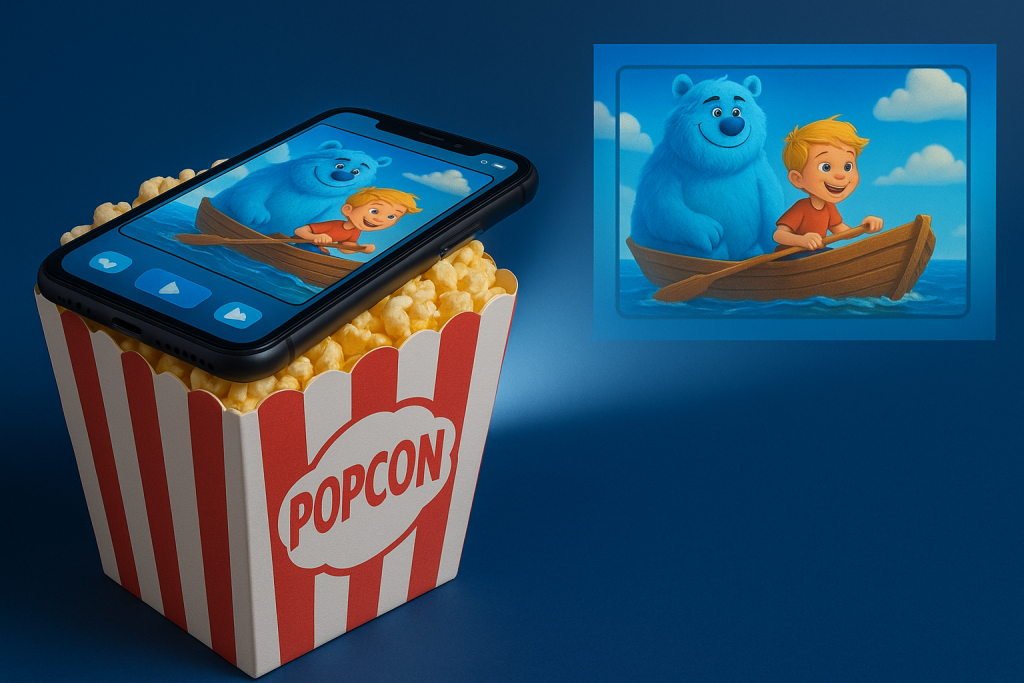
For YouTube videos, travel photos, and TV series already on your TV, screen mirroring is a free solution and the right answer for most people. It only depends on your home Wi-Fi and devices you probably already own.
For work presentations, the HDMI cable remains the most reliable because it doesn't depend on an external network. An adapter is inexpensive and avoids the embarrassment of spending ten minutes trying to connect before the meeting starts.
And for the dream of a movie theater on your bedroom wall, only a physical projector delivers. In that case, the apps on the list cease to be the main product and become what they really are: a much better remote control than the one that came in the box.
Conclusion
To put it bluntly: your cell phone doesn't turn into a projector, but it becomes an excellent source of content for any large screen. With Google Home, a Miracast app, AirScreen on your TV Box, or the official app for your projector, you can put videos, photos, and presentations on a larger screen in just a few taps and without paying anything.
Start by identifying the standard your TV supports, install the corresponding app from Google Play or the App Store, and test it with a short video before you really need one. If, after that, the image on the wall is still missing, then you should consider buying a projector—and you'll already know exactly which app to use to control it.